
Most mobile C-arms can store images on their own workstation, but a New Orleans hospital or surgery center usually wants them in PACS, next to the patient's other studies. Whether a refurbished unit can do that depends on options and settings you can check before it ships. For C-arm models, service and rental in Texas, see our C-arm sales, repair and rental page.
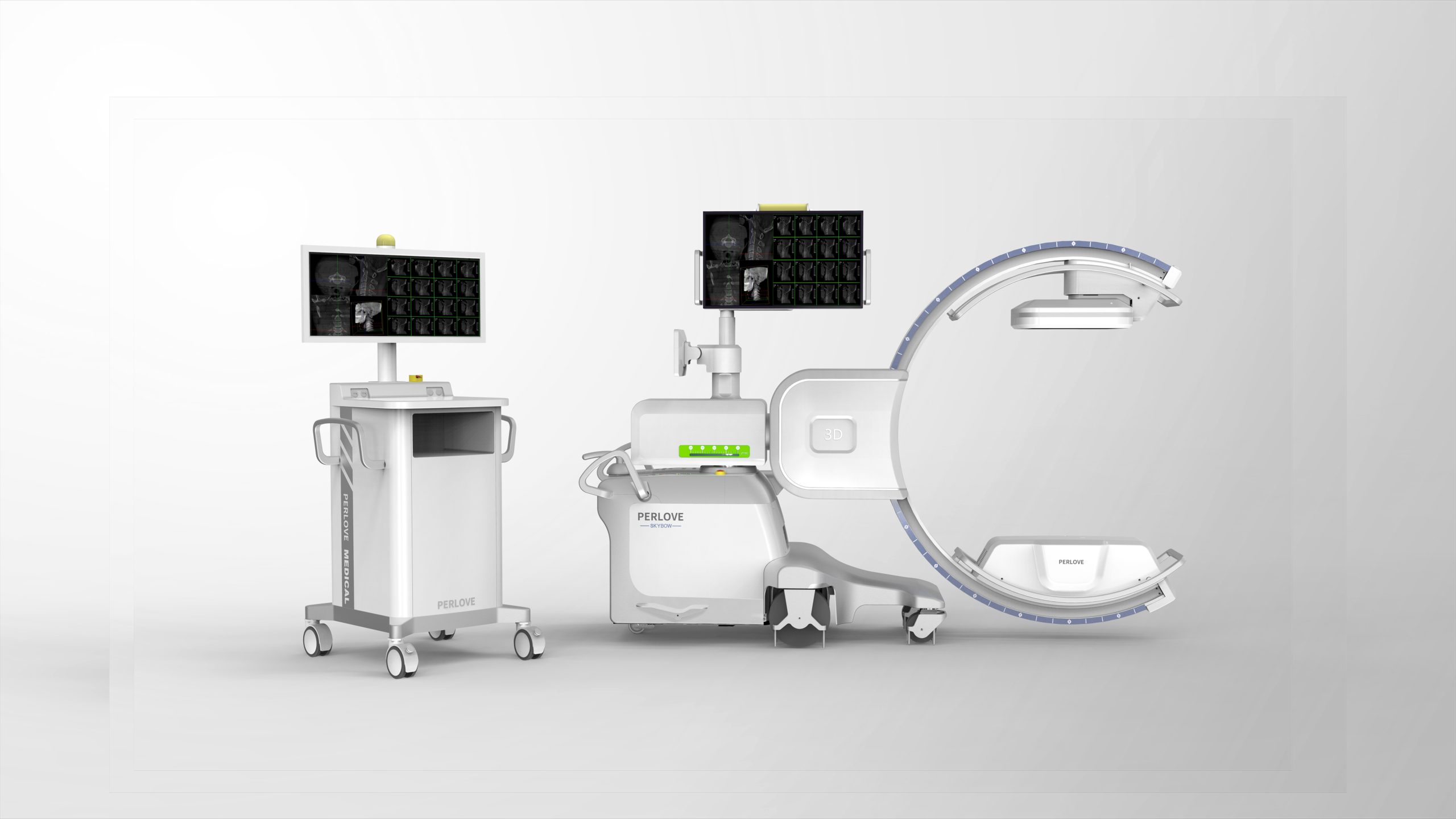
1. Check the DICOM options on the machine
A C-arm sends images to PACS using DICOM, the standard file format and network protocol for medical images. On many C-arms the DICOM features are licensed options, so two units of the same model can behave differently. Ask the seller for a photo of the system information or options screen, and look for:
- DICOM Store, which sends images to PACS. Without it, the unit cannot push studies over the network.
- Modality Worklist, which pulls the scheduled patient's name and ID from your RIS or EHR, so staff do not have to type them and fewer studies end up under the wrong patient.
- DICOM Print, if you still print film or paper images.
- Dose reporting. If your facility tracks patient dose, ask whether the unit can send a radiation dose structured report (RDSR); not every model or software version can.
Software packages differ by model as well. Our OEC 9900 configuration guide shows how much a single model line can vary.
2. Gather the network settings before delivery
Your PACS administrator will ask for the same short list of settings. Collecting them before the C-arm arrives keeps installation day short.
| Setting | What it is | Who supplies it |
|---|---|---|
| C-arm AE title | The name the C-arm uses on the DICOM network, up to 16 characters | Your PACS or IT team assigns it |
| C-arm IP address | A fixed address on your network | Your IT team |
| PACS AE title, IP address and port | Where the C-arm sends images | Your PACS administrator |
| Worklist AE title, IP address and port | Where the C-arm asks for scheduled patients (only with Modality Worklist) | Your RIS or EHR team |
Both sides must list each other: if the PACS does not know the C-arm's AE title and address, it will refuse the connection. The DICOM standard recommends port 104, or port 11112 where a system cannot use port 104 (DICOM PS3.8), but many PACS listen on a port of their own, so confirm it rather than assume.
3. Plan for an older workstation
A refurbished C-arm's workstation may run an operating system that no longer receives security updates, and it may not accept antivirus software. That does not rule the machine out, but your IT team should know before it connects. Security experts quoted by Healthcare Dive in 2024 recommend network segmentation: placing legacy devices on their own network segment, where they can still reach the clinical systems they need, such as PACS, but little else. Give your IT team the model and software version early so they can plan where the C-arm sits on the network.
4. Send a test study on installation day
- Run a DICOM echo (verification) from the C-arm to PACS. A network ping is not enough; the echo confirms that both sides accept each other.
- Register a test patient, take a few images of a test phantom, and send them.
- Open the study in PACS and check the patient name and ID, the date and time, the image orientation, and that every image arrived.
- If you use Modality Worklist, pick a scheduled test patient from the list and confirm the details carry through to PACS.
- Write the settings down and keep them with the service records, so the next engineer does not start from scratch.
5. Keep a fallback: USB and disc export
Until the network link works, or on a unit without DICOM Store, many C-arms can export studies to a USB drive or disc. Exported images still carry patient information, so use encrypted media and follow your facility's privacy policy.
Problems that show up after go-live
- Studies under the wrong patient: usually typing errors when patient details are entered by hand. A modality worklist, if the C-arm supports it, removes most of them.
- Images arriving with the wrong date or time: the workstation clock has drifted. Set it correctly at installation and check it after any power loss.
- Sends failing after an IT change: a new firewall rule, IP address or PACS upgrade can break the connection. Ask IT to tell your imaging team before changes and to test a send afterward.
- Workstation storage full: if sending fails quietly, images pile up locally. Check the queue weekly and clear it once studies are confirmed in PACS.
A short monthly check, sending one test image and confirming it arrived, catches most of these before a physician goes looking for a missing study.
Questions about a specific unit
If you are still comparing machines, our 8 questions to ask before buying a C-arm in New Orleans covers configuration, Louisiana registration and delivery. To find out which DICOM options a C-arm in our inventory has, call (469) 767-8853 or send us a request.







Leave a Comment
Comments [0]
No comments available for this blog.